
A customer messages your business on WhatsApp at 9:40 PM asking for a price. Nobody replies until 11 the next morning. By then, they have already asked two of your competitors, and one of them answered first.
This happens to small businesses every day, and most of it is avoidable. The free WhatsApp Business app has three built-in automated messages that take about 10 minutes to set up. In this guide, you will learn how to set up WhatsApp Business automated messages step by step, see ready-to-use message examples for different industries, and find out when you need more than the free app.
Key takeaways
- WhatsApp Business has three free automated messages: greeting message, away message and quick replies.
- All three are found under Settings → Business tools in the app.
- Set your business hours first, so away messages go out only when you are closed.
- The free app cannot answer questions on its own, qualify leads or book appointments. For that you need the WhatsApp Business Platform (API) with a chatbot or AI agent.
What are WhatsApp Business automated messages?
Automated messages are replies that WhatsApp sends for you, or lets you send in one tap, without typing the same thing again and again. The WhatsApp Business app (the free green app with the “B” icon, separate from regular WhatsApp) offers three types:
| Message type | When it is sent | Best used for |
|---|---|---|
| Greeting message | Automatically, when a customer messages you for the first time, or after 14 days without any messages in that chat | Welcoming new leads and telling them what to do next |
| Away message | Automatically, when a customer messages you outside your business hours or on a schedule you choose | Setting expectations at night, on holidays and on weekends |
| Quick replies | Manually, when you type “/” in a chat and pick a saved reply | Answering common questions about price, location, timings and payment |
Before you start: 3 things to set up first
- Use the WhatsApp Business app. Automated messages are not available in regular WhatsApp. Download WhatsApp Business from the Play Store or App Store. You can move your existing number to it.
- Complete your business profile. Add your business name, category, address, website, email and a short description under Settings → Business tools → Business profile. A complete profile makes your automated replies look trustworthy instead of spammy.
- Set your business hours. In the same Business profile section, open Hours and add your opening and closing times for each day. Your away message can use these hours to decide when to send.
How to set up a greeting message in WhatsApp Business
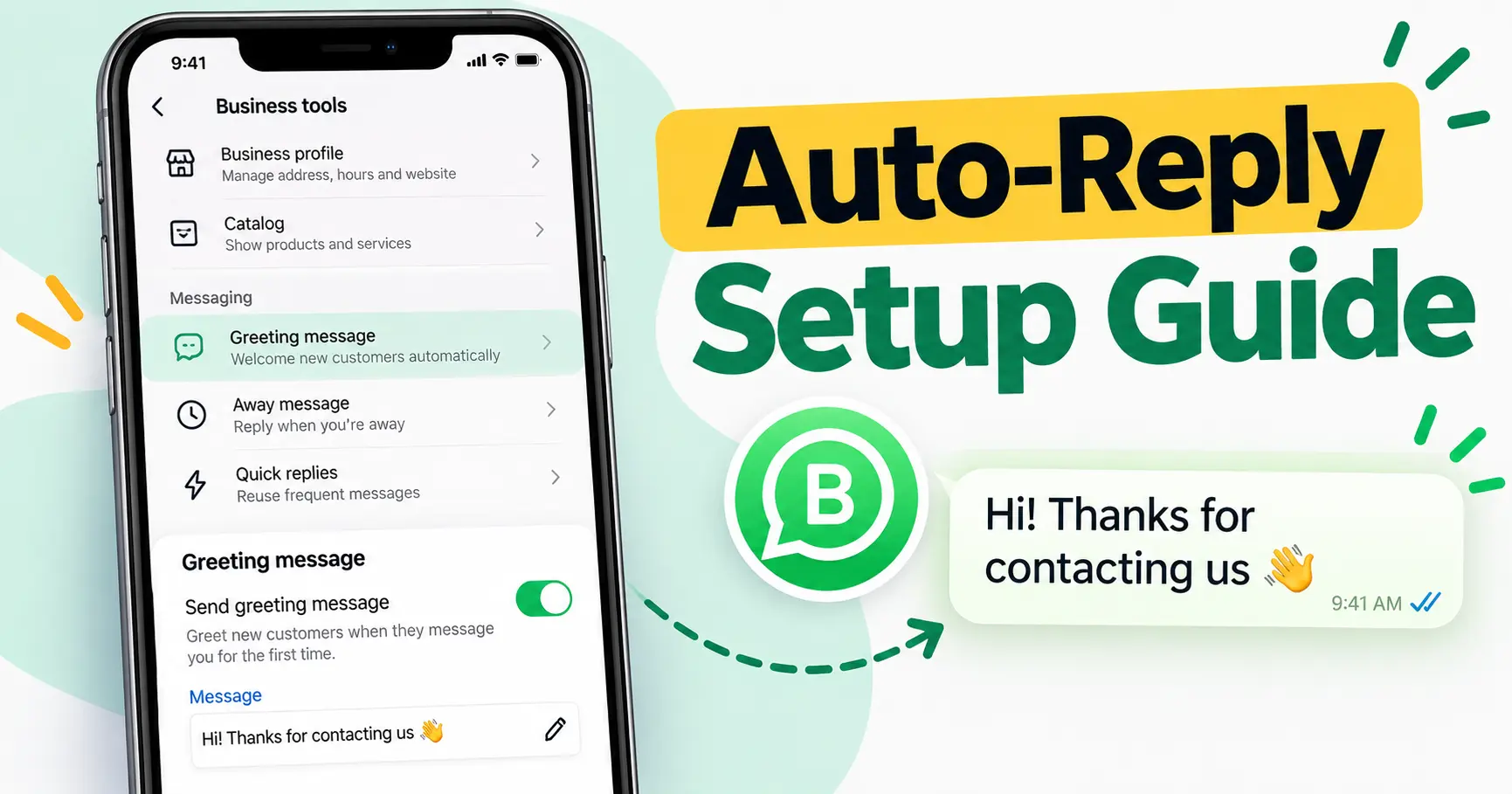
The greeting message is the first thing a new customer sees from you. Think of it as your receptionist: it should welcome them, tell them what you can help with and ask one simple question.
- Open WhatsApp Business. On Android, tap the three dots (⋮) at the top right and choose Settings. On iPhone, tap Settings at the bottom right.
- Tap Business tools.
- Tap Greeting message and turn on Send greeting message.
- Tap the message to edit it. Write your greeting and tap OK.
- Tap Recipients and choose who receives it: Everyone, Everyone not in address book, Everyone except… or Only send to…
- Tap Save.
Tip: Choose Everyone not in address book if you already chat with existing clients, family or suppliers on the same number. That way, only new enquiries get the greeting.
Greeting message examples you can copy
A good greeting does three things: thanks the customer, shows what you offer and asks one question that moves the conversation forward. Replace the words in brackets with your own details.
- Interior design studio: “Hi! Thanks for contacting [Studio Name] 👋 We design modular kitchens, wardrobes and full homes. Which space are you planning to do: kitchen, bedroom or the full home?”
- Clinic or salon: “Hello and welcome to [Clinic Name]. Would you like to book an appointment or ask about a service? Please share your preferred day and time.”
- Coaching institute: “Hi! Thanks for your interest in [Institute Name]. Which course are you looking for, and is it for you or your child?”
- Online store: “Hi! Welcome to [Brand]. You can browse our catalogue right here on WhatsApp. Tell us what you’re looking for and we’ll help you pick.”
- Real estate: “Hello! Thanks for your enquiry about [Project Name]. Are you looking for a 2BHK or 3BHK, and what is your preferred budget range?”
How to set up an away message
An away message tells customers you’ve received their message and when you’ll reply. Without it, a message sent at night just sits there, and the customer has no idea whether anyone will ever respond.
- Go to Settings → Business tools → Away message.
- Turn on Send away message.
- Tap the message to edit it and tap OK.
- Tap Schedule and pick one option:
- Always send: sends the away message every time (useful during holidays).
- Custom schedule: sends it only between the times you set.
- Outside of business hours: uses the hours you added to your business profile. This is the best option for most businesses.
- Choose your Recipients and tap Save.
Away message examples
- After hours: “Thanks for your message! Our team is available Monday to Saturday, 10 AM to 7 PM. We’ll reply first thing tomorrow morning. Meanwhile, you can see our work at [website].”
- Holiday: “Happy Diwali from [Business Name] 🪔 We’re closed until [date] and will reply as soon as we’re back. Thank you for your patience.”
- Busy on site: “Hi! We’re currently on a client visit. We’ll get back to you within 2 hours. If it’s urgent, please mention ‘URGENT’ in your message.”
Only promise a reply time you can actually keep. An away message that says “within 1 hour” followed by silence until the next day does more damage than no message at all.
How to set up quick replies
Quick replies are saved answers for the questions you hear every day. Instead of typing your address or payment details for the hundredth time, you type a shortcut like /location and send the full message in one tap. You can also attach images or videos to a quick reply, which is ideal for price lists or catalogues.
- Go to Settings → Business tools → Quick replies.
- Tap the + icon to add a new one.
- Type the message, and add a photo or video if you need to.
- Add a shortcut (for example,
price). Keep it short and easy to remember. - Tap Save.
- To use it in a chat, type / in the message box, pick the reply from the list and tap send.
Quick replies every business should create
| Shortcut | What it says |
|---|---|
/location | Your full address, a Google Maps link and nearby landmark |
/timings | Working days and hours, including lunch breaks or weekly offs |
/price | Your price list, or the details you need before you can share a price (size, quantity, location) |
/payment | Accepted payment methods and your official UPI ID or bank details |
/visit | How to book a visit or appointment, with two time slot options |
/thanks | A thank-you message after a purchase, with a request for a review |
Best practices for WhatsApp Business automated messages
- Keep it short. Two to four lines is enough. People read WhatsApp on their phones, often in a hurry.
- End with a question. “Which product are you interested in?” gets far more replies than “Let us know if you need anything.”
- Sound like a person. Write the way you would speak to a customer in your shop. Hinglish is fine if that’s how your customers talk.
- Use one emoji, not ten. A single 👋 or 🙏 feels friendly. A line full of emojis feels like spam.
- Review your messages every few months. Update prices, timings and offers so your automation never gives out old information.
Mistakes that get businesses ignored or blocked
Automation saves time, but used carelessly it can hurt your account. WhatsApp’s Business Policy expects you to message people who have agreed to hear from you. Avoid these common mistakes:
- Messaging people who never contacted you. Buying number lists and sending them offers is the fastest way to get reported and restricted.
- Using unofficial “bulk sender” tools. Third-party apps that automate the regular WhatsApp or WhatsApp Business app break WhatsApp’s terms and can get your number banned. Use the official WhatsApp Business Platform for anything at scale. Read our guide on bulk WhatsApp marketing rules to see what is allowed.
- Making promises your business can’t keep, like “reply in 5 minutes” or “lowest price guaranteed.”
- Hiding the human. If someone asks to speak to a person, make sure a person replies.
What the free app can’t do (and when you need more)
Greeting messages, away messages and quick replies are a great start. But they are fixed messages. They cannot read what the customer asked and give a useful answer. That is the gap where most leads are lost: the customer gets “Thanks, we’ll reply soon,” and then waits.
| Feature | WhatsApp Business app (free) | WhatsApp Business Platform (API) + AI agent |
|---|---|---|
| Greeting and away messages | Yes | Yes |
| Answers customer questions on its own | No | Yes, from your product and price data |
| Sends the right photos or catalogue | Manually | Automatically, by category |
| Qualifies leads (budget, size, location) | No | Yes |
| Books appointments on your calendar | No | Yes |
| Connects to your website forms, Meta lead ads or CRM | No | Yes |
| Multiple team members on one number | Limited | Yes |
| Cost | Free | Setup cost plus Meta’s per-message charges |
Meta has also started rolling out its own AI tool for businesses, called Meta Business Agent, announced in June 2026. Availability and features vary by country and account, so check the Business tools section of your app to see whether it’s available to you.
You should consider moving beyond the free app when:
- You get more than 20 to 30 new enquiries a day and replies are getting delayed.
- You run Meta or Google ads and want every lead to get an instant, useful reply.
- Your team answers the same questions about price, photos and location all day.
- You want visits or appointments booked without phone calls back and forth.
How we help businesses automate WhatsApp
At SKP DigitX, we set up WhatsApp AI sales agents on the official WhatsApp Business Platform. The agent is trained on your products, prices, project photos and FAQs. It greets every new lead in seconds, answers their questions, shares the right photos, qualifies the lead and books a visit on your calendar. Your team gets an alert and steps in whenever a human is needed.
Not sure if you need it yet? Book a free 30-minute audit. We’ll look at how leads reach you today and tell you honestly whether the free app is enough.
Frequently asked questions
Can I set up automated messages in regular WhatsApp?
No. Greeting messages, away messages and quick replies are only available in the WhatsApp Business app and the WhatsApp Business Platform.
Are WhatsApp Business automated messages free?
Yes. Greeting messages, away messages and quick replies in the WhatsApp Business app are free. Charges apply only when you use the WhatsApp Business Platform (API), where Meta charges per message for certain message types.
Why is my greeting message not being sent?
The greeting only goes out when a customer messages you for the first time, or after 14 days without messages in that chat. It also won’t go to people excluded by your Recipients setting. Test it by messaging your business from a number that has never chatted with it.
Can WhatsApp Business reply automatically to every message?
The free app can only send its greeting and away messages automatically. To reply to every message with a relevant answer, you need a chatbot or AI agent connected through the WhatsApp Business Platform.
Can I use Hindi or Hinglish in automated messages?
Yes. WhatsApp supports any language. Write your messages in the language your customers use. Many Indian businesses get better replies with simple Hinglish.
Final word
Set up all three today: a greeting message that asks one question, an away message that sets an honest expectation, and quick replies for your five most common questions. It takes about 10 minutes and makes every new enquiry feel looked after, even when you’re busy.
And when your WhatsApp gets too busy for one person to handle, that’s the sign to let an AI agent do the first conversation for you.